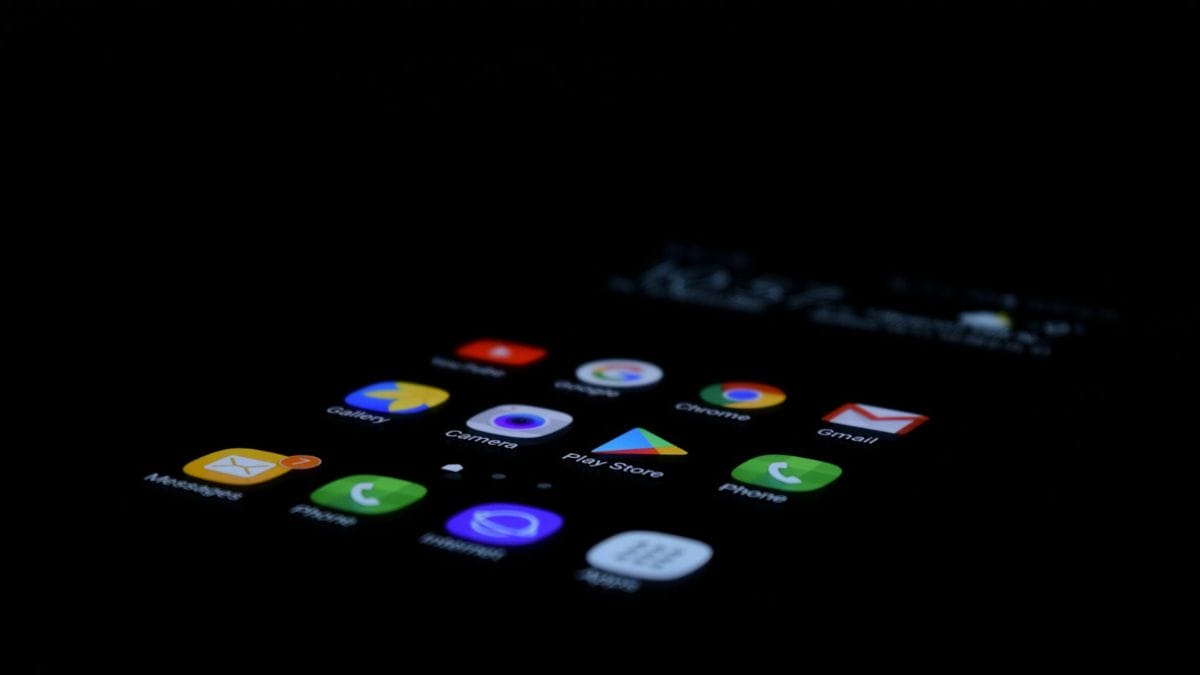
Google Assistant is a virtual assistant powered by AI that assists users with various tasks on their devices. The assistant can be quite helpful in providing information, managing schedules, controlling smart home devices, and more. However, not everyone finds Google Assistant beneficial, and some might prefer to disable it. In this article we will cover how to turn off Google Assistant on different devices.
There are several reasons why one might choose to turn off Google Assistant. For instance, some users might find it invasive or feel that it affects their privacy, while others might be annoyed by its voice-activated functions or simply lack interest in using virtual assistants. Disabling Google Assistant can be accomplished through a few steps, which will be demonstrated in this article
- Understanding Google Assistant
- Reasons to Turn Off Google Assistant
- How to Disable Google Assistant
- Deactivating Voice Match and Trigger Words
- Customizing Google Assistant Settings
- Alternative Methods to Manage Google Assistant
- Frequently Asked Questions
- How can I disable Google Assistant on my Android device?
- What steps are needed to turn off Google Assistant on my Samsung smartphone?
- Can Google Assistant be switched off on an iPhone, and if so, how?
- What is the process for turning off Google Assistant on a Realme phone?
- How do I stop Google Assistant from activating with the power button?
- Why does Google Assistant activate automatically and how can I prevent it?
Understanding Google Assistant
AI and Virtual Assistants
Google Assistant is an example of a virtual assistant powered by artificial intelligence (AI). When I interact with it on my smartphone, tablet, or other compatible devices, it helps me perform various tasks and get information. As AI becomes more advanced, using Google Assistant or other virtual assistants can significantly improve my productivity and make my daily life more convenient.
Virtual assistants like Google Assistant can perform tasks such as setting reminders, adjusting smart home devices, and providing weather reports—all through simple voice commands. I can also use it to control my Android phone, Android TV, or smart speakers like Google Home and Google Nest Mini.
Devices with Google Assistant
Here’s a list of some popular devices that come with Google Assistant:
- Smartphones: Android smartphones, including the latest models from manufacturers like Samsung, LG, and Google Pixel, have Google Assistant built-in.
- Tablets: Android tablets also provide support for Google Assistant.
- Smart Speakers: Devices like Google Home and Google Nest Mini use Google Assistant to control smart home devices, play music, and answer my queries.
- Android TV: Android TVs have Google Assistant integration, allowing me to access content and control other compatible devices through voice commands.
Using Google Assistant across these devices makes it easier for me to access information and control my smart home appliances seamlessly.
Reasons to Turn Off Google Assistant
Privacy Concerns
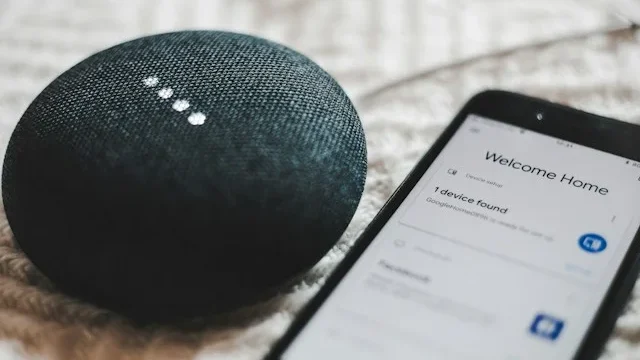
As a user of Google Assistant, I’ve often wondered about the privacy concerns associated with actively using a voice assistant. Google Assistant, similar to Amazon Alexa and Siri, listens for keywords to activate its services. This means that the device is constantly analyzing all conversations, which may include personal and sensitive information. Although the data is stored and transmitted in a secure manner, some users may not feel comfortable with this level of access to their personal information.
Minimizing Interruptions
Another reason to consider turning off Google Assistant is to minimize interruptions during daily activities. Sometimes, the voice assistant can be too sensitive and may activate unintentionally. For example, while watching a movie or listening to music, the assistant might suddenly activate without anyone explicitly calling for it. By turning off Google Assistant, it would ensure that I can carry out tasks without worrying about any unwanted interactions.
Comparing Virtual Assistants
Lastly, as someone who enjoys staying up-to-date with the latest technologies, I find it helpful to compare various voice assistants such as Siri and Amazon Alexa. Google Assistant has its own unique features and capabilities, but it is only by temporarily disabling it that I can fully explore and assess the functionalities of its competitors. This comparison allows me to make an informed decision about which virtual assistant best suits my needs and preferences.
In conclusion, turning off Google Assistant can be beneficial for addressing privacy concerns, minimizing interruptions, and comparing the features and capabilities of competing voice assistants.
How to Turn Off Google Assistant (Methods Below)
Disabling on Android Devices
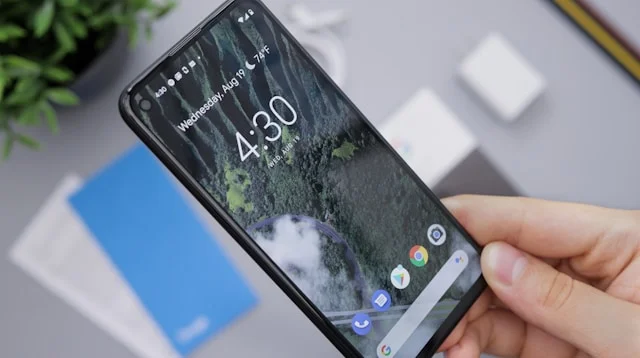
To disable Google Assistant on your Android phone, you need to open the Google app. The app icon looks like a multicolored “G.” Once the app is open, tap your profile picture to access the settings menu. Go to Settings > Google Assistant > General and toggle off the switch to disable Google Assistant. Keep in mind that some apps and features, like Google Weather on your home screen or voice dialing, will no longer work once it’s disabled.
Disabling on Google Home Devices
To turn off Google Assistant on Google Home devices, such as Google Nest speakers or Google Nest displays, you can mute the microphone. The mute switch is located on the back or underside of the device. Once the microphone is disabled, Google Assistant will be unable to receive voice commands. However, this also means that your device will not respond to any voice commands, including non-Google Assistant related ones.
Disabling on Smartphones and Tablets
The process to disable Google Assistant on smartphones and tablets varies slightly based on the device. Open the Google app and tap on your profile icon in the top-right corner. Then, navigate to Settings > Google Assistant > General and toggle off the switch to disable Google Assistant. Keep in mind that some features, such as voice commands and specific app functions, may not work when Google Assistant is turned off.
Disabling on Android TVs and Chromebooks
To turn off Google Assistant on Android TVs and Chromebooks, you need to navigate to the system settings. Access the settings menu and find the section related to Google Assistant. Toggle off the switch, and the Google Assistant feature will be disabled. Note that turning off Google Assistant may lead to reduced functionality or loss of some features like voice search and voice commands.
By following the steps mentioned above, you can successfully disable Google Assistant on various devices according to your needs. Remember that disabling Google Assistant may affect the functionality of certain features and apps.
Deactivating Voice Match and Trigger Words
There are occasions when we may want to stop our devices from actively listening or responding to “Hey Google” or “Ok Google” voice commands. These phrases, often called wake words or trigger words, can be disabled without completely turning off Google Assistant. In this section, I will guide you through the process of disabling “Hey Google” and “Ok Google” voice commands.
Turning off ‘Hey Google’ and ‘Ok Google’
To turn off both “Hey Google” and “Ok Google”, the first step is to access the Google Assistant settings. To do this, open the Google app on your Android device and go to Settings > Google Assistant > General. From there, you can simply toggle off the option for Google Assistant.
Next, let’s focus on disabling Hey Google detection. This is similar to the process detailed above: Open the Google app on your Android device, and navigate to Settings > Google Assistant > Hey Google & Voice Match. You should then toggle off the option for “Hey Google”.
By turning off Google Assistant and Hey Google detection, you have effectively deactivated voice commands and triggered listening. However, this does not mute Google Assistant. To mute Google Assistant and stop it from providing any verbal responses while keeping voice commands enabled, you can open the Google Assistant app and adjust the settings there.
In summary, I have outlined the steps required to turn off “Hey Google” and “Ok Google”, effectively disabling voice commands and triggered listening on your device. If you want to go one step further and mute Google Assistant altogether, you can also do so in the Google Assistant app.
Customizing Google Assistant Settings

As someone who frequently uses Google Assistant, I’ve found it essential to customize its settings for a personalized experience. In this section, I’ll cover the process of adjusting Voice Match settings and managing Assistant’s access and permissions.
Adjusting Voice Match Settings
Voice Match is a useful feature, as it allows Google Assistant to recognize my voice and respond specifically to me. To adjust Voice Match settings, I follow these steps:
- Open the Google app on my device.
- Tap on the profile icon located in the top-right corner.
- Select Settings, which should resemble a gear icon.
- Navigate to Google Assistant and then to Voice Match.
In the Voice Match menu, I can manage various options, such as enabling Access with Voice Match to let Google Assistant respond to my voice when the screen is off. By exploring this menu, I make adjustments according to my preferences and needs.
Managing Assistant’s Access and Permissions
Managing Google Assistant’s access and permissions ensures that I have control over the level of personal data the Assistant can access. To manage these settings, I follow these steps:
- Open the Google app and tap on the profile icon.
- Choose Settings (the gear icon) and go to the Google Assistant section.
- Here, I select General to access the various options related to Assistant’s access and permissions.
Now, it’s crucial to review this list carefully and toggle the options on or off according to my requirements. For example, by toggling off some permissions, I limit the information Google Assistant can access from my account, enhancing my privacy.
By customizing my Google Assistant settings and taking the time to adjust aspects like Voice Match and permissions, I’ve created a tailored experience that responds specifically to my needs while maintaining a balance between convenience and privacy.
Alternative Methods to Manage Google Assistant
Utilizing the Google Home App
In addition to managing your devices, the Google Home app also offers options to manage your Google Assistant settings. To start, tap on your profile picture in the top-right corner of the app. Next, head over to the settings. Here, you’ll find options to toggle Google Assistant on and off depending on your preferences.
If you’re looking to manage specific triggers for Google Assistant, such as voice or gesture activation, this can also be done within the app. Simply navigate through the settings and locate the options for these triggers, which can be turned on or off to suit your needs.
Using Physical Buttons on Devices
Some devices come equipped with physical buttons designed specifically for controlling Google Assistant. One common example is the microphone button located on devices like headphones and speakers. By pressing this button, you can quickly access Google Assistant without using a voice command.
Additionally, certain smartphones feature a designated power button integration for invoking Google Assistant. Typically, a long press on the power button may trigger the Assistant or open the Assist app settings.
When using physical buttons to control Google Assistant, remember that their functionality may vary depending on the manufacturer and device model. Therefore, it’s essential to consult your device’s documentation or manufacturer’s website for information on controlling Google Assistant using these buttons.
In summary, you can manage Google Assistant using alternative methods such as the Google Home app and physical buttons found on specific devices. These options provide a more tailored experience based on your comfort level and preferences when interacting with Google Assistant.
Frequently Asked Questions
How to Turn Off Google Assistant on my Android device?
To disable Google Assistant on your Android device, follow these steps: Open the Google app, tap on More, then Settings, and finally Google Assistant. Under the General tab, turn off the Google Assistant toggle switch.
What steps are needed to turn off Google Assistant on my Samsung smartphone?
On a Samsung smartphone, disable Google Assistant by following these steps: Open the Google app, tap More, select Settings, and click on Google Assistant. Navigate to the Assistant tab and choose your device, then turn off the Google Assistant switch.
Can Google Assistant be switched off on an iPhone, and if so, how?
Google Assistant is not built into the iPhone’s operating system like Siri, so if you want to disable the Google Assistant on your iPhone, you can simply uninstall the Google Assistant app from your device.
What is the process for turning off Google Assistant on a Realme phone?
The process of turning off Google Assistant on a Realme phone is similar to other Android devices. Open the Google app, tap the More icon, select Settings, and click on Google Assistant. Go to the Assistant tab, choose your device, and disable the switch next to Google Assistant.
How do I stop Google Assistant from activating with the power button?
To prevent Google Assistant from activating when pressing the power button, go to your phone’s settings, search for the Assistant settings, and find the option to trigger Google Assistant with the power button. Toggle this option off to disable the activation with the power button.
Why does Google Assistant activate automatically and how can I prevent it?
Google Assistant may activate automatically if it’s detecting the “Hey Google” or “Ok, Google” voice commands. To disable the “Hey Google” or “Ok, Google” voice command, launch the Google app, tap on More, navigate to Settings, and enter the Google Assistant settings. Under the “Hey Google” & Voice Match tab, toggle off “Hey Google” or “Ok, Google” detection. This will prevent it from activating automatically.