
If you’re a Windows user, you’re probably familiar with the Services app. This utility lists all the services running on your system and ensures that they’re running smoothly. However, like any other Windows component, the Services app can sometimes run into issues, preventing you from accessing or modifying certain services.
If you’re having trouble accessing Services on Windows, don’t worry. In this guide, we’ll walk you through some troubleshooting steps to help you get the app up and running again. Whether you’re experiencing issues with opening the app or modifying services, we’ve got you covered. So, let’s dive in and get your Services app working properly again.
- How to Fix Services.msc not opening in Windows
- 1. Restart your Windows PC
- 2. Run Windows Services as an Administrator
- 3. Try Running Windows Services through Command Prompt
- 4. Select Microsoft Management Console as default app for .msc files
- 5. Run Windows’ Built-In Troubleshooters
- 6. Run the SFC Scan
- 7. Run a Full Antivirus Scan
- 8. Perform a System Restore
- 9. Reset Windows
- Frequently Asked Questions
- Enabling Disabled Services through the Services Console
- Restarting a Specific Service Using the Microsoft Management Console
- Common Reasons for Microsoft Services to Stop Working and How to Address Them
- System Permissions Required to Make Changes in the Services Console
- Restoring Default Service Configurations if You Encounter Errors After Modifying Them
How to Fix Services.msc not opening in Windows
1. Restart your Windows PC
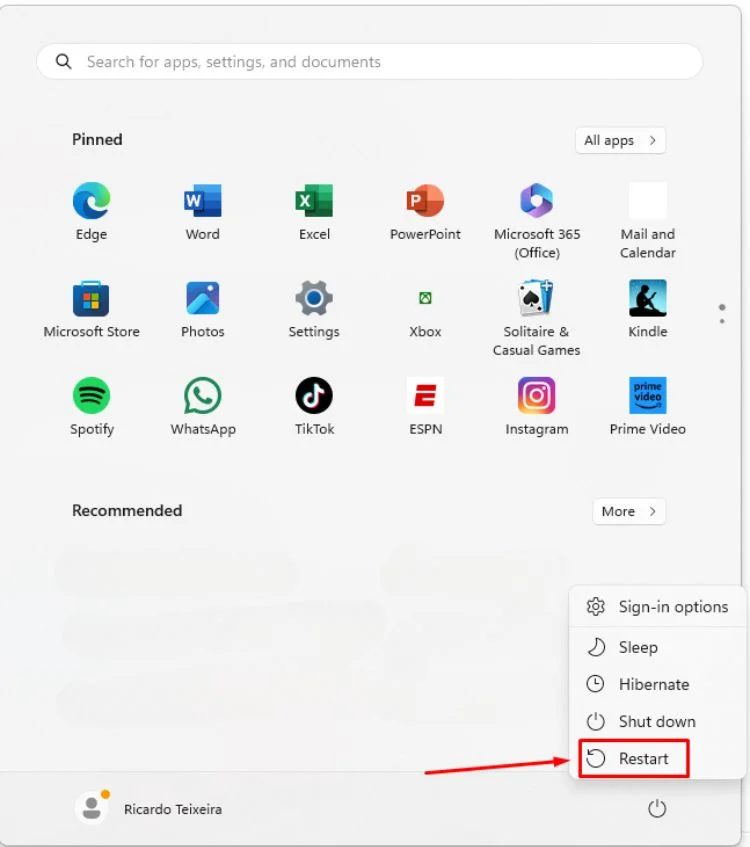
Before attempting any other troubleshooting steps, it’s essential to restart your Windows computer. Restarting can help release apps and processes from the memory. After restarting, you can access the Windows Services app by clicking on Windows Search, typing “Services,” and selecting the Windows Services app.
2. Run Windows Services as an Administrator
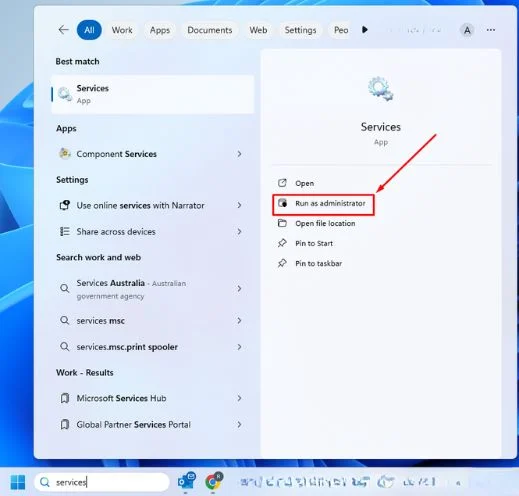
Many users have reported resolving the issue of the Services app not opening by running it as an administrator. To do this:
- Click on Windows Search and type “Services.”
- Right-click on the Services app and select “Run as administrator.”
That’s it! This is how you can fix Services not opening on Windows computers.
3. Try Running Windows Services through Command Prompt
If the Services.msc app is not opening directly, you can try opening it from the Command Prompt.
- Press the Windows Key, type “Command Prompt,” right-click on it, and select “Run as administrator.”
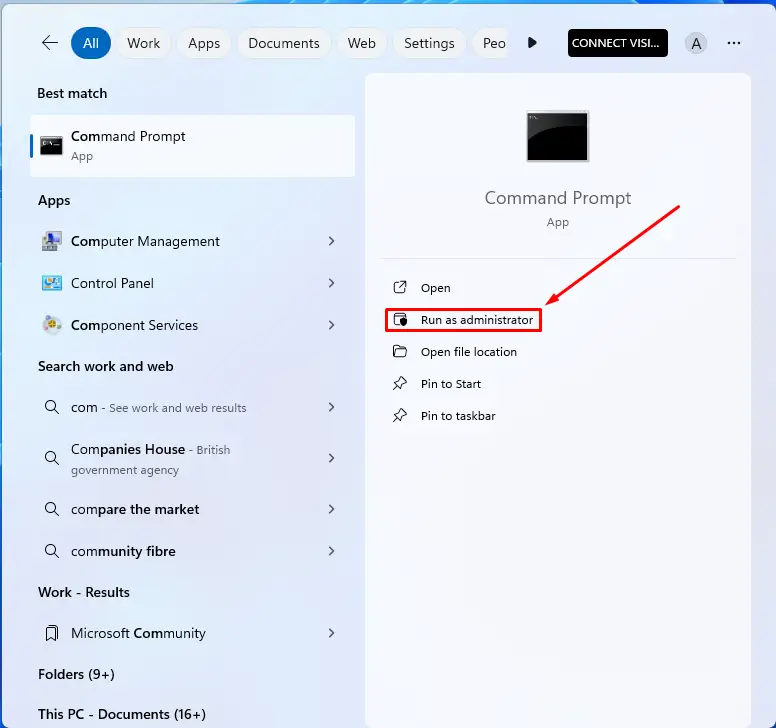
- Then, type the “services.msc” command and press Enter button on your keyboard.

4. Select Microsoft Management Console as default app for .msc files
Setting Microsoft Management Console as the default app for .msc files is crucial for ensuring the proper functioning of the Services.msc. You can do this by:
- Search for Settings and click Open the Settings app.

- Select “Apps,” and then choose “Default apps,”
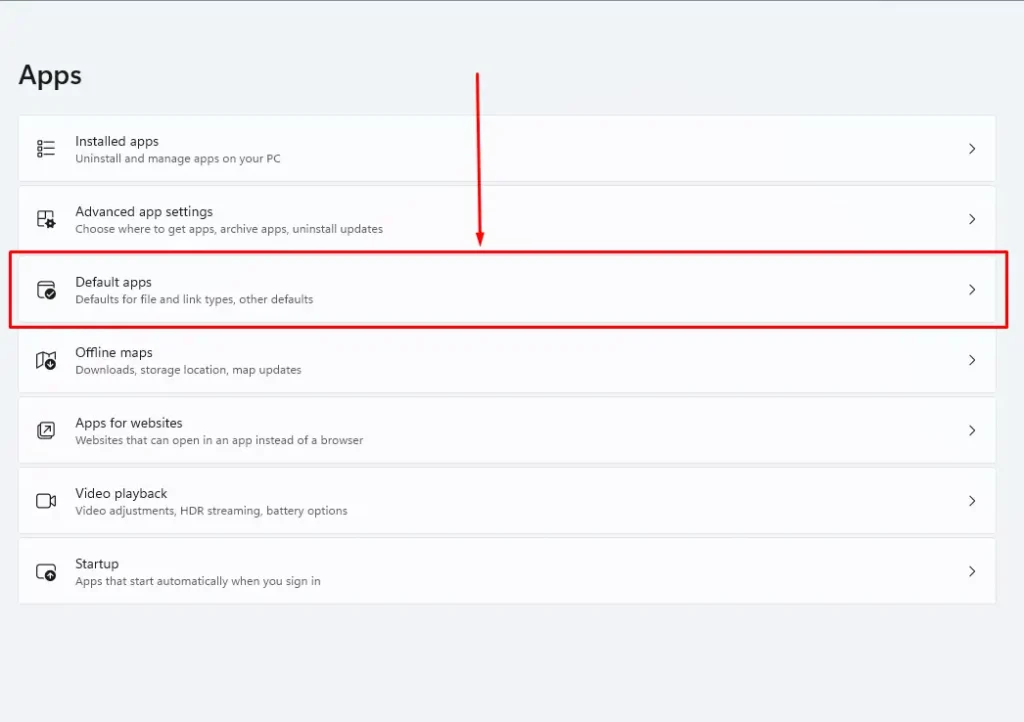
- Search for “.msc,”
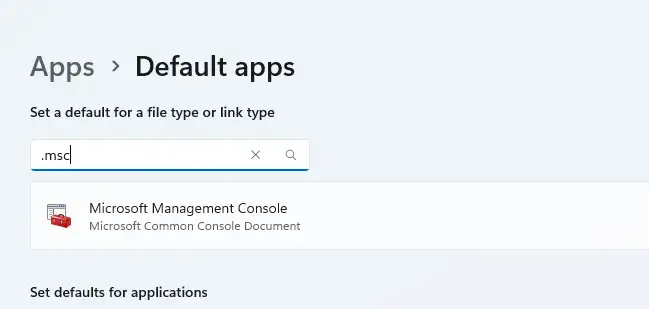
- Setting Microsoft Management Console as the default app

That’s it! This is how you can set Microsoft Management Console as the default app for .msc files to fix Windows Services not opening.
5. Run Windows’ Built-In Troubleshooters
Running the System Maintenance Troubleshooter can help resolve any system maintenance issues that may be preventing Windows Services from opening. You can access this troubleshooter by:
- Click on the Windows search, type “Perform recommended maintenance,” and select “Perform recommended maintenance task automatically.”

- Click on “Advanced Button” to show more options.

- Tick the Apply repairs automatically option (Important) and click Next.

That’s it! This will run the System Maintenance troubleshooter on your Windows computer.
6. Run the SFC Scan
System file corruption can be a common reason for Services not opening on Windows. Running the System File Checker (SFC) utility can help repair corrupted system files. To do this:
- Open Command Prompt as an Administrator.
- Type “sfc /scannow,” and press Enter.
sfc /scannow

- Wait for the scan to complete. If SFC returns an error, you can run the DISM tool commands (list below) to address the issue further.
DISM /Online /Cleanup-Image /CheckHealth
DISM /Online /Cleanup-Image /ScanHealth

That’s it! After performing the above steps, restart your Windows computer. This should fix the Services app not opening on Windows.
7. Run a Full Antivirus Scan
Running a full antivirus scan with Windows Security is recommended to ensure that malware is not causing the Services app to malfunction. You can access the Windows Security app by following these steps:
- Click on Windows search, type “Windows Security,” and open the Windows Security app.

- Click on Virus & Threat Protection.

- Click on the Scan options.
- Select Full Scan and click the Scan Now button.
That’s it! After running a full scan, restart your PC and access the Windows Services app again.
8. Perform a System Restore
If the Services.msc is still not opening, you can consider performing a System Restore to revert your PC to a previous state when the Services app was functioning correctly. To do this follow the steps below:
- Type “Recovery” in Windows Search and open the Recovery app under the Settings tab.

- On the Recovery app, click on Open System Restore.

- On the System Restore prompt, click Next.

- Now, pick the restore point of a past date and click Next.

- Confirm the restore point, and click Finish.

You need to wait until the Recovery app restores your PC. The process may take a while to complete.
9. Reset Windows
If all else fails, resetting Windows may be the last resort. This will restore your system to its original state. You can initiate the reset process by accessing the Recovery app and following the instructions to reset your Windows PC.
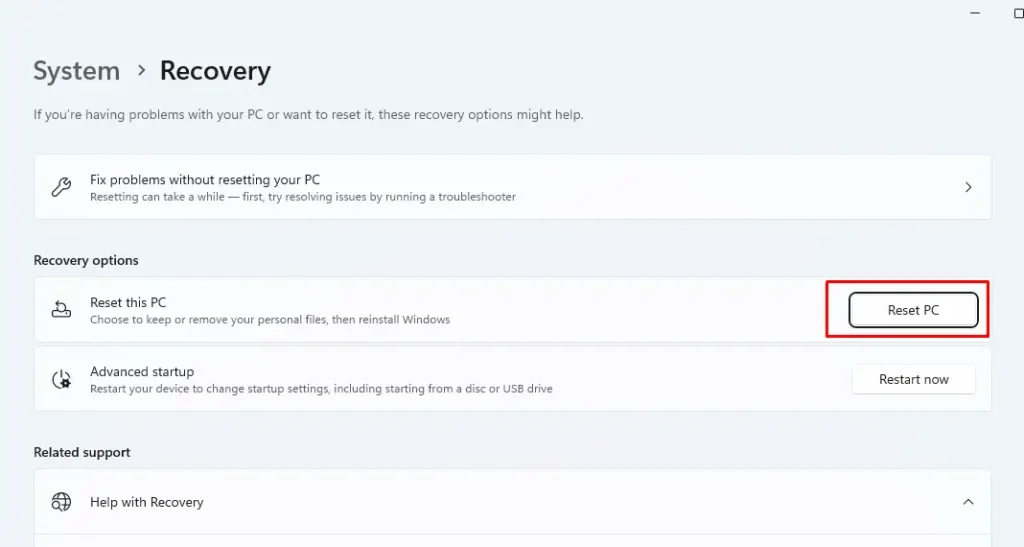
Important note: resetting will remove all your user settings and important registry & local group policy settings. So, back up all your important files before reset your computer.
Frequently Asked Questions
Enabling Disabled Services through the Services Console
If you find that a service is disabled in the Services Console, you can enable it by following these steps:
- Open the Services Console by typing “services.msc” in the Run dialog box.
- Locate the service that you want to enable and right-click on it.
- Select “Properties” from the context menu.
- In the Properties dialog box, go to the “General” tab.
- Change the “Startup type” to “Automatic” or “Manual”.
- Click “Apply” and then “OK”.
Restarting a Specific Service Using the Microsoft Management Console
To restart a specific service using the Microsoft Management Console, follow these steps:
- Open the Microsoft Management Console by typing “mmc” in the Run dialog box.
- Go to “File” > “Add/Remove Snap-in”.
- Select “Services” and click “Add”.
- Click “OK” to add the Services snap-in to the MMC.
- Locate the service that you want to restart and right-click on it.
- Select “Restart” from the context menu.
Common Reasons for Microsoft Services to Stop Working and How to Address Them
There are several reasons why Microsoft services may stop working. Some common reasons include:
- Corrupted system files.
- Conflicts with other services or applications.
- Outdated drivers.
- Malware or virus infections.
To address these issues, you can try the following:
- Run a system file checker scan.
- Disable conflicting services or applications.
- Update your drivers.
- Run a malware scan.
System Permissions Required to Make Changes in the Services Console
To make changes in the Services Console, you need to have administrative privileges on the computer. If you are not an administrator, you will not be able to make any changes to the services.
Restoring Default Service Configurations if You Encounter Errors After Modifying Them
If you encounter errors after modifying the service configurations, you can restore the default settings by following these steps:
- Open the Services Console by typing “services.msc” in the Run dialog box.
- Locate the service that you want to restore and right-click on it.
- Select “Properties” from the context menu.
- In the Properties dialog box, go to the “Recovery” tab.
- Click “Restore Defaults” and then click “Apply” and “OK”.