If you’re faced with the annoyance of Spotify Error Code 18, fret not. We’ve compiled tried-and-true steps to quickly fix Spotify Error Code 18, covering everything from system checks to clean installations, bringing your Spotify back to life.
Key Takeaways
Terminate all Spotify processes via Task Manager and end tasks for both ‘Apps’ and ‘Background processes’ to eliminate conflicts that could be causing Error Code 18.
Remove all residual Spotify files from the AppData folder, including both Roaming and Local directories, and clear temporary files to ensure a clean installation environment.
In severe cases, perform a system scan for malware, as malicious software can be at the root of Error Code 18; remove or quarantine any detected threats to maintain system health.
- Key Takeaways
- Terminate All Spotify Processes
- Remove Residual Spotify Files
- Scan Your PC for Malware & Viruses
- Close Conflicting Applications
- Perform a Clean Boot on Windows
- Install Spotify in Safe Mode
- Download Spotify from Microsoft Store
- Utilize Third-Party Tools for Uninterrupted Listening
- Summary
- Frequently Asked Questions
Terminate All Spotify Processes
You might question the necessity of terminating all Spotify processes. Well, let’s say you’re trying to install Spotify, but you’re unable to due to this pesky error code 18. This could be because the Spotify installer is clashing with existing Spotify processes running in the background. So, how do you go about terminating these processes?
- One way is to use Task Manager, which you can open directly by pressing Shift + Ctrl + Esc. (Alternatively, you can right-click on an empty area of the taskbar and select ‘Task Manager’.)
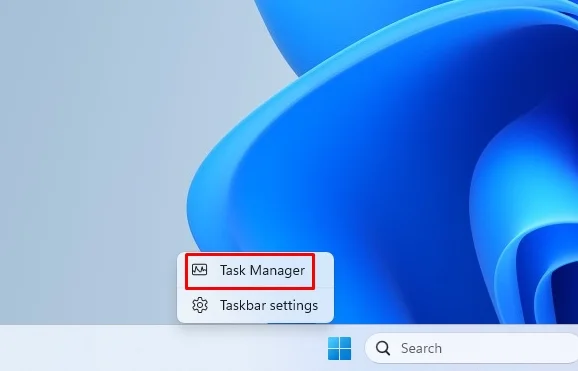
- Navigate to the ‘Processes’ tab to find any running Spotify applications listed under ‘Apps’. (Don’t forget to check under ‘Background processes’ as well for any additional Spotify tasks that might be running.)
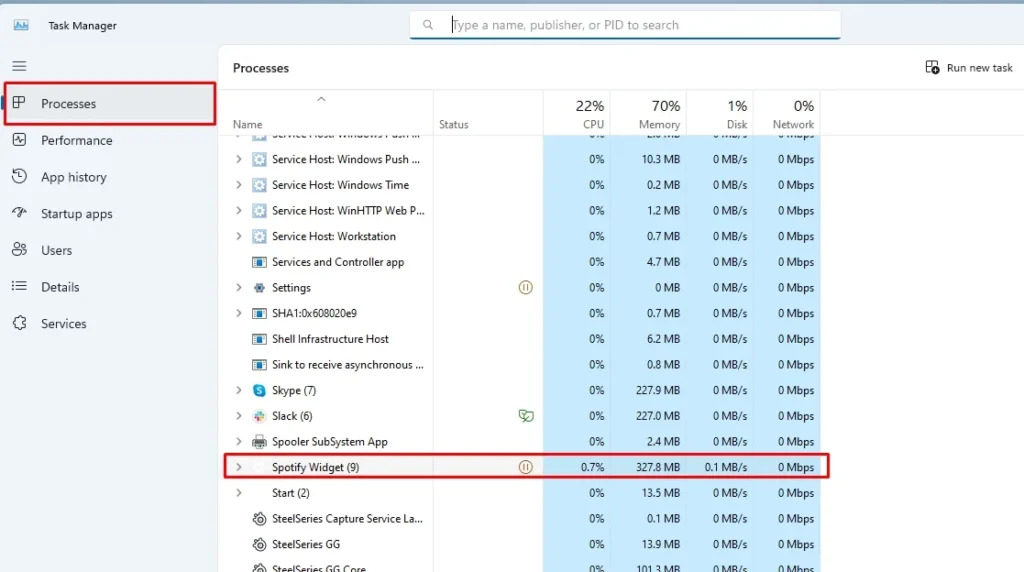
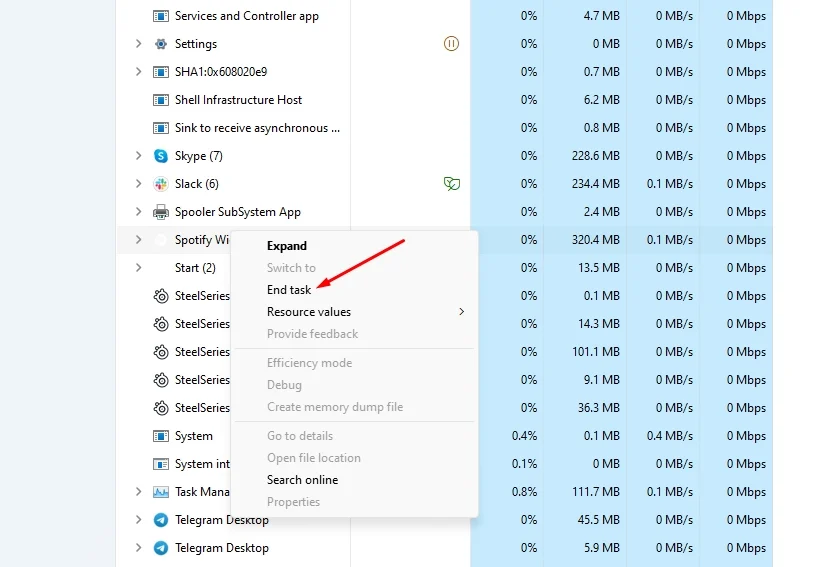
- To terminate these processes, simply select them and click on ‘End task’.
Important: Ensure all Spotify entries in both ‘Apps’ and ‘Background processes’ are closed by ending each one individually.
Clearing all Spotify related processes also paves the way for the Spotify installer to operate unhindered. It’s like clearing away the rubble before building a house. This can be a very effective step towards fixing the Spotify error code 18.
Remove Residual Spotify Files
Clearing all residual Spotify files is another viable strategy to rectify Spotify Error Code 18. These are leftover data that might be causing conflicts with the installation process. To delete Spotify’s App Data, you need to navigate to %AppData%, then to AppDataRoaming and delete all Spotify folders found there. Not sure where to find and delete these files?
- To access Run, press WIn + R and type %AppData% inside Run’s Open box.
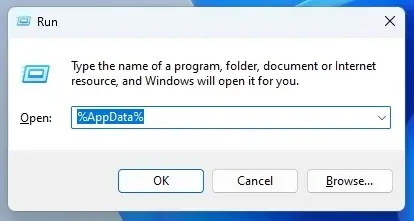
- Right-click the Spotify data folder and select its Delete option. Select Yes (if prompted to confirm) and Restart the PC after erasing that data folder.
Eliminating all the files essentially purges your system, removing potential obstacles that could interfere with Spotify’s installation. It’s like de-cluttering your house before moving in new furniture!
Scan Your PC for Malware & Viruses
At times, the root of Spotify Error Code 18 might be more sinister, beyond mere leftover files or conflicting applications. It could be a result of malware or viruses lurking in your PC. So, how do you fix Spotify Error Code 18 and deal with these unseen threats?
- You can then start scanning by opening the Windows Settings by pressing Windows + I in your keyboard.
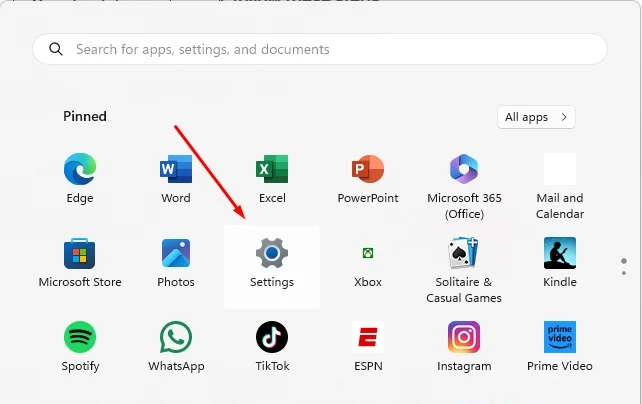
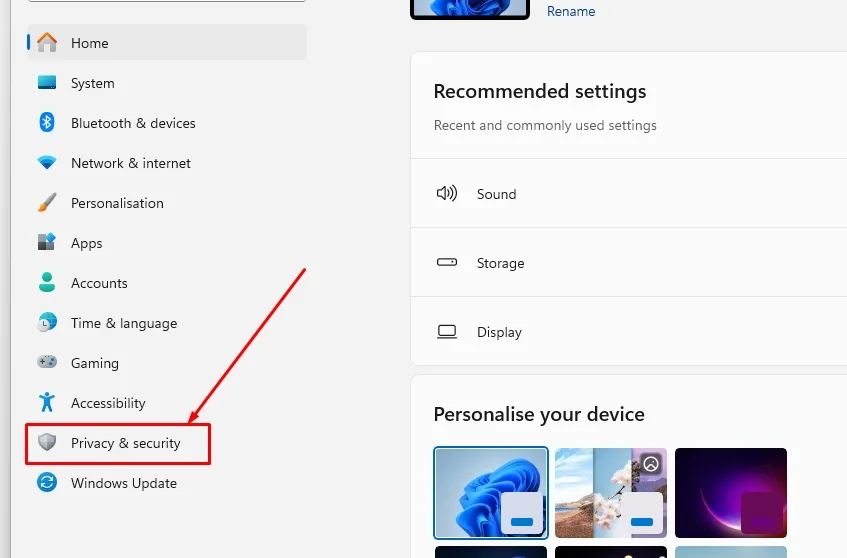
- Navigate to ‘Privacy & Security’.
- Then click on ‘Windows Security’ this will lead you to the scanning feature.
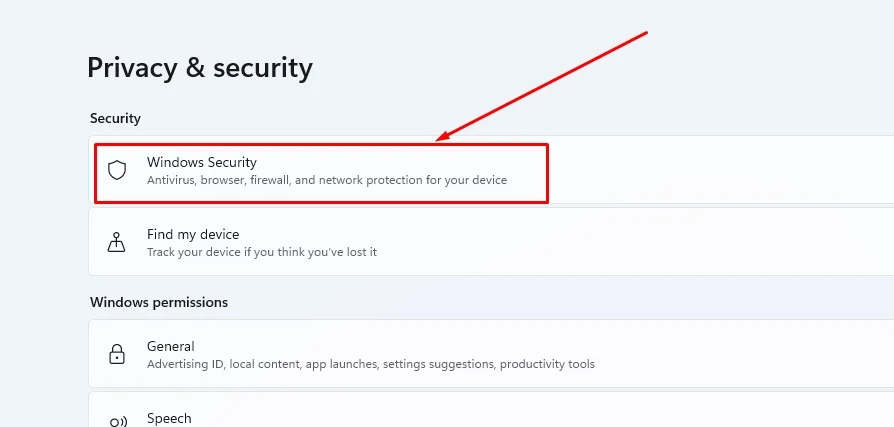
- Ensure your antivirus is updated for the latest virus definitions, and choose ‘Quick scan’ for a fast check or ‘Full scan’ for a thorough investigation of the system. Begin the scan by clicking ‘Scan now’.
After the scan completes, remove or quarantine any detected malware as recommended by your antivirus software. This step is not just about fixing the Spotify error but also about ensuring that your PC is healthy and free from potential threats.
Close Conflicting Applications
Are you aware that some applications on your PC might disrupt the Spotify installation process? Applications like iTunes and Comodo programs are known to cause conflicts, specifically interrupting the Spotify installation. Even Steam, a beloved platform for many gamers, can interfere with the Spotify installer.
So, what’s the solution? For starters, make sure to exit these applications before starting the Spotify installation process. Check all associated processes in the Task Manager and ensure they are closed.
In some cases, if the presence of iTunes, Steam or Comodo Firewall is causing Spotify Error Code 18, you might need to uninstall these applications to resolve the installation issues. Once you’ve dealt with these conflicting applications, you’re one step closer to resolving the error and enjoying your favorite tunes again.
Perform a Clean Boot on Windows
Executing a clean boot in Windows offers another solution for Spotify Error Code 18. A clean boot can help eliminate third-party background services and apps that might conflict with Spotify’s installation.
To do this, you need to:
Access the System Configuration
Navigate to the Services tab
Check ‘Hide all Microsoft services’
Click ‘Disable all’
Head to the Startup tab
Click ‘Open Task Manager’
Disable all listed startup programs
Close Task Manager
Click ‘OK’ to restart.
After restarting in a clean boot environment, troubleshoot Spotify installation issues by systematically turning on or off services and startup items, then restart to check if the issue persists. If necessary, consider the option to reinstall Spotify.
Once done, remember to reset the windows computer to start normally by selecting ‘Normal Startup’ in System Configuration, re-enable all services and startup programs in Task Manager, and restart the computer.
Think of this method as wiping a slate clean before sketching a new image.
Install Spotify in Safe Mode
You can also try installing Spotify in Safe Mode with Networking to circumvent third-party app conflicts and effectively tackle Error Code 18. Safe Mode starts Windows with minimal drivers and services, thus circumventing any interference.
To start Windows in Safe Mode with Networking, follow these steps:
Access the Settings menu by using the home button or pressing the Windows logo key + I on your keyboard.
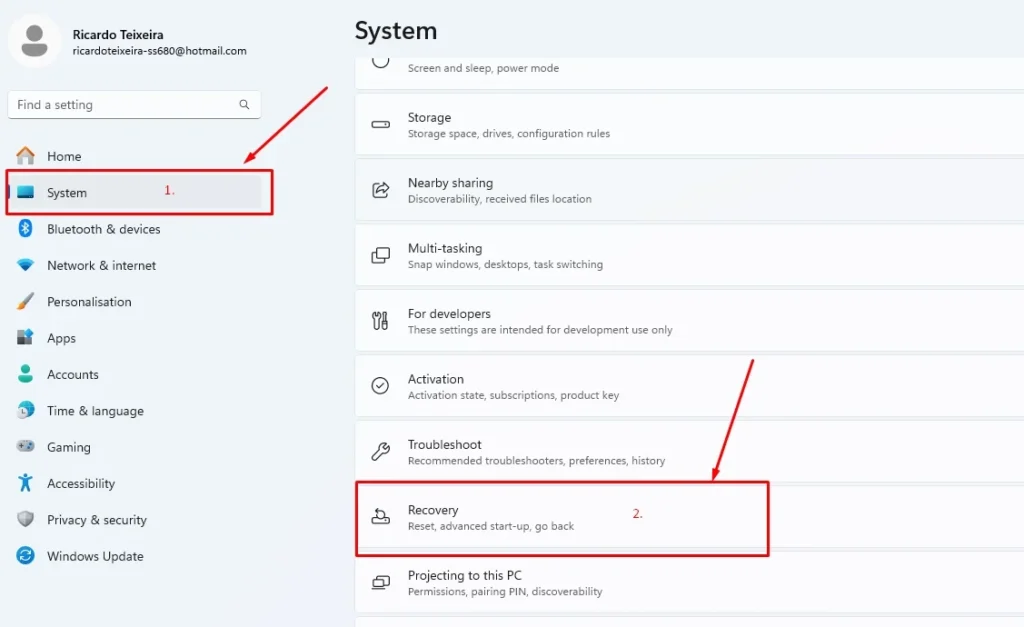
Navigate to System > Recovery.
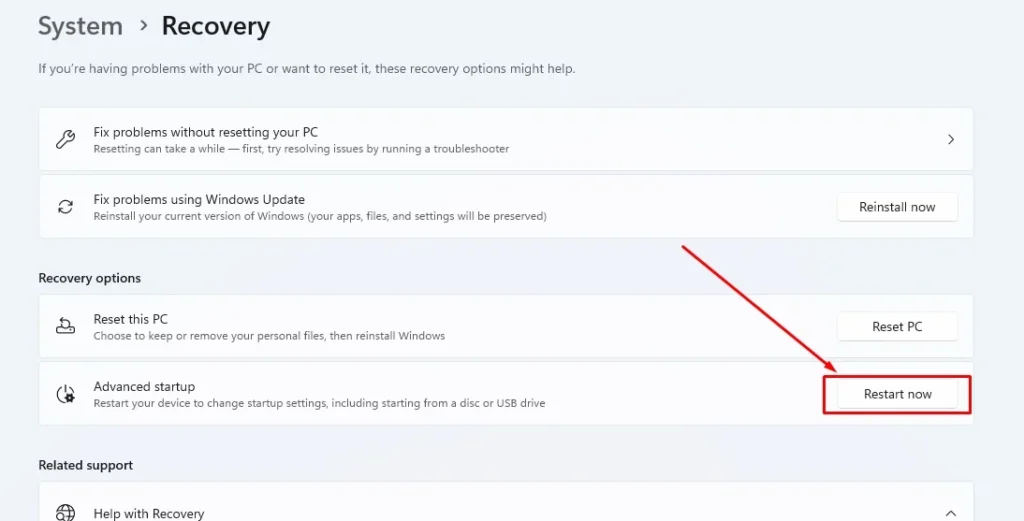
Select ‘Restart now’ under Advanced startup.
On the sign-in screen, hold the Shift key while selecting Power > Restart.
One crucial point to remember is not to restart the computer during the Safe Mode installation process of Spotify, as doing so would terminate Safe Mode and potentially reactivate the conflicts causing installation issues.
After successfully installing Spotify, exit Safe Mode by restarting your device, ensuring to uncheck ‘Safe boot’ under the Boot tab in System Configuration if your device continues to start in Safe Mode.
Download Spotify from Microsoft Store
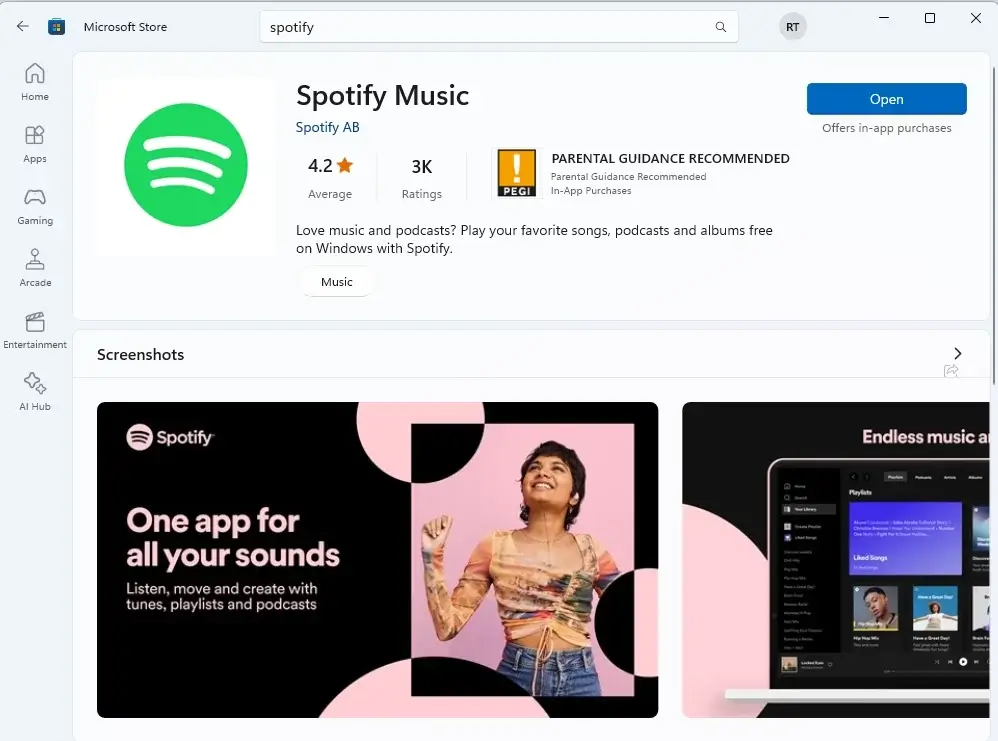
If the traditional desktop installer continues to fail, consider downloading Spotify from the Microsoft Store as an alternative. Not only does this method provide a one-time purchase with use across all compatible devices, but it also ensures that the Spotify app receives automatic updates, keeping the install it current without manual intervention.
The Spotify app, also known as the Spotify application, from the Microsoft Store is designed as a Universal Windows Platform (UWP) app, suitable for a range of Windows 10 devices including PCs, tablets, and phones. Once installed, you can easily organize your playlists in a spotify folder. To download Spotify from the Microsoft Store, use the Microsoft Store app on your Windows device, search for Spotify, and click ‘Get’ to proceed with the installation.
Note that Spotify users operating Windows in S mode are restricted to installing applications solely from the Microsoft Store, rendering the Spotify app from there the sole choice for them. However, keep in mind that the Microsoft Store version of Spotify may present differences in the user interface or available features when compared to the standard desktop version.
Utilize Third-Party Tools for Uninterrupted Listening
Leveraging third-party tools like ViWizard Spotify Music Converter is another route to sidestep Spotify Error Code 18. This allows you to:
Download and convert Spotify songs for offline listening
Support multiple audio formats, including MP3, AAC, WAV, FLAC, ALAC, and AIFF
Offer fast conversion speeds
Retain the original sound quality and metadata of Spotify tracks
With these tools, you benefit from:
uninterrupted offline listening
the ability to organize downloaded music using a file explorer
the flexibility to transfer your music to different devices or use with various software applications.
For further flexibility, alternative options such other programs such as Cinch Audio Recorder and AudFree Spotify Music Converter can record and convert streaming music from Spotify to overcome DRM limitations. This way, not only do you get to enjoy your favorite tunes offline but also circumvent the dreaded Spotify Error Code 18.
Summary
This guide has walked you through various methods to fix the Spotify Error Code 18 – from terminating Spotify processes and removing residual files, to scanning for malware, closing conflicting apps, and even downloading from the Microsoft Store. Whether you’re a tech novice or a seasoned pro, these solutions are designed to be effortless and effective.
So, the next time you encounter Spotify Error Code 18, remember – you have the power to fix it. Armed with this guide, you’re ready to troubleshoot and stream uninterrupted. After all, why should anything come between you and your music?
Frequently Asked Questions (FAQ’s)
Why Spotify is not installing?
It could be due to your device not being compatible with the application. Check if your device is eligible to download the application in the Supported devices article. If that doesn’t work, consider seeking assistance from an Android app developer. Additionally, leftover files from a previous Spotify instance on the computer may be causing the installation error. Clearing these residual files may resolve the issue.
How do I fix Spotify error?
To fix the Spotify error, you can try restarting your device, updating the app, or reinstalling the app if needed. This can help resolve technical issues with playing music on the Spotify app several users.
What is Spotify error code 18?
Error code 18 often occurs due to a conflict with background services or app processes. You can resolve this by clean-booting Windows to eliminate these conflicts and then install Spotify without issues.
Why is terminating all Spotify processes important?
Terminating all Spotify processes is important to clear the path for the Spotify installer and prevent potential conflicts, such as Error Code 18. This can help ensure a successful installation.