Close Menu

    Subscribe to our Newsletter

    Stay updated with all the latest and important news, articles, and deals in the Tech industry.

    What's Hot
    OpenAI strikes major deal with News Corp to boost ChatGPT

    OpenAI strikes major deal with News Corp to boost ChatGPT

    May 23, 2024
    How to Run Apps as Administrator on Windows 11 (All Methods)

    How to Run Apps as Administrator on Windows 11 (All Methods)

    March 20, 2024
    Report: New anti-glare and scratch-resistant display coming to iPhone 17

    Report: New anti-glare and scratch-resistant display coming to iPhone 17

    March 19, 2024
    Facebook X (Twitter) Instagram
    Facebook X (Twitter) Instagram Pinterest Vimeo
    Techie Talks: Where Technology Meets SimplicityTechie Talks: Where Technology Meets Simplicity
    • Home
    • News
    • Computing
      1. Peripherals & Accessories
      2. Monitors
      3. Internet
      4. Online Security
      5. View All
      Do You Really Need a 4K Monitor?

      Do You Really Need a 4K Monitor? Understanding the Benefits and Overkill

      February 16, 2024
      Do You Really Need a 4K Monitor?

      Do You Really Need a 4K Monitor? Understanding the Benefits and Overkill

      February 16, 2024
      How to Hide Microsoft Edge Sidebar

      How to Hide Microsoft Edge Sidebar in the Latest Update

      February 26, 2024
      DuckDuckGo Browser Takes a Massive Step with End-to-End Encrypted Sync

      DuckDuckGo Browser Takes a Massive Step with End-to-End Encrypted Sync

      February 15, 2024
      DuckDuckGo Browser Takes a Massive Step with End-to-End Encrypted Sync

      DuckDuckGo Browser Takes a Massive Step with End-to-End Encrypted Sync

      February 15, 2024
      How to Run Apps as Administrator on Windows 11 (All Methods)

      How to Run Apps as Administrator on Windows 11 (All Methods)

      March 20, 2024
      How to change your default browser in Windows 11

      How to change your default browser in Windows 11

      March 12, 2024
      Is Your Mac Safe? How to Detect and Remove Viruses Quickly

      Is Your Mac Safe? How to Detect and Remove Viruses Quickly

      March 7, 2024
      Enable Two Finger Scroll on Windows

      Enable Two Finger Scroll on Windows: Easy Step-by-Step Guide

      March 5, 2024
    • Mobile
      1. Guides
      2. View All
      How to Fix Instagram Crashing in 2024 (11 Methods)

      How to Fix Instagram Crashing in 2024 (11 Methods)

      March 12, 2024
      How to Automatically Delete OTP & Verification Codes on iPhone

      How to Automatically Delete OTP & Verification Codes on iPhone

      March 11, 2024
      Apple Weather App Not Working On iPhone

      9 Ways to Fix Apple Weather App Not Working On iPhone

      March 1, 2024
      Connect to a WiFi Hotspot Without Password

      6 Ways to Connect to a WiFi Hotspot Without Password

      March 1, 2024
      How to Fix Instagram Crashing in 2024 (11 Methods)

      How to Fix Instagram Crashing in 2024 (11 Methods)

      March 12, 2024
      How to Automatically Delete OTP & Verification Codes on iPhone

      How to Automatically Delete OTP & Verification Codes on iPhone

      March 11, 2024
      Does Your Snap Score Increase With Chats

      Does Your Snap Score Increase With Chats? (Explained)

      March 1, 2024
      Apple Weather App Not Working On iPhone

      9 Ways to Fix Apple Weather App Not Working On iPhone

      March 1, 2024
    • Gaming
      1. Gaming Periperals
      2. View All
      Best 4K Monitors for Gaming

      Best 4K Monitors for Gaming in 2024: Top Picks for High-Resolution Play

      February 17, 2024
      How to sync a PS4 controller to pair it with a console or device

      How to sync a PS4 controller to pair it with a console or device

      March 13, 2024
      How to Play Fortnite on iPhone

      How to Play Fortnite on iPhone and iOS: The Ultimate Guide

      March 6, 2024
      How to Download Fortnite

      How to Download Fortnite: Creating and Managing Your Fortnite Account

      March 6, 2024
      Connect AirPods Xbox Series X

      Connect AirPods Xbox Series X: Seamless Audio Pairing Guide

      February 27, 2024
    • Entertainment
      1. Audio / Video
      2. View All
      F1 live stream: How to watch Formula 1 online for free

      F1 live stream: How to watch Formula 1 online for free

      March 8, 2024
      Best IPTV Players for Firestick/Android TV

      10 Best IPTV Players for Firestick/Android TV in 2024: Top Picks Revealed

      March 2, 2024
    • How Tos
      Spotify Error Code 18

      Effortless Solutions to Fix Spotify Error Code 18: Troubleshoot & Stream Uninterrupted!

      March 6, 2024
      How to Play Fortnite on Chromebook

      How to Play Fortnite on Chromebook: Step-by-Step Guide

      February 27, 2024
      How to Increase Keep2Share Download Speed Using VPN

      How to Increase Keep2Share Download Speed Using VPN: Optimize Your Files Transfer Now

      February 27, 2024
      How to Hide Microsoft Edge Sidebar

      How to Hide Microsoft Edge Sidebar in the Latest Update

      February 26, 2024
      How to Fix Services.msc

      Struggling with Services.msc in 2024? Fix it FAST with this Step-by-Step Guide!

      February 22, 2024
    Subscribe
    Techie Talks: Where Technology Meets SimplicityTechie Talks: Where Technology Meets Simplicity
    Home»How Tos»Struggling with Services.msc in 2024? Fix it FAST with this Step-by-Step Guide!
    How Tos

    Struggling with Services.msc in 2024? Fix it FAST with this Step-by-Step Guide!

    Restoring Administrative Tools: Your Complete Guide to Troubleshooting Services.msc Issues in Windows
    Ricardo TeixeiraBy Ricardo TeixeiraFebruary 22, 2024No Comments6 Mins Read
    Share Facebook Twitter Pinterest LinkedIn Tumblr Reddit Telegram Email
    How to Fix Services.msc
    (Image credit: Erick Cerritos)
    Share
    Facebook Twitter LinkedIn Pinterest Email

    If you’re a Windows user, you’re probably familiar with the Services app. This utility lists all the services running on your system and ensures that they’re running smoothly. However, like any other Windows component, the Services app can sometimes run into issues, preventing you from accessing or modifying certain services.

    If you’re having trouble accessing Services on Windows, don’t worry. In this guide, we’ll walk you through some troubleshooting steps to help you get the app up and running again. Whether you’re experiencing issues with opening the app or modifying services, we’ve got you covered. So, let’s dive in and get your Services app working properly again.

    Contents
     [show]
    • How to Fix Services.msc not opening in Windows
      • 1. Restart your Windows PC
      • 2. Run Windows Services as an Administrator
      • 3. Try Running Windows Services through Command Prompt
      • 4. Select Microsoft Management Console as default app for .msc files
      • 5. Run Windowsโ€™ Built-In Troubleshooters
      • 6. Run the SFC Scan
      • 7. Run a Full Antivirus Scan
      • 8. Perform a System Restore
      • 9. Reset Windows
    • Frequently Asked Questions
      • Enabling Disabled Services through the Services Console
      • Restarting a Specific Service Using the Microsoft Management Console
      • Common Reasons for Microsoft Services to Stop Working and How to Address Them
      • System Permissions Required to Make Changes in the Services Console
      • Restoring Default Service Configurations if You Encounter Errors After Modifying Them

    How to Fix Services.msc not opening in Windows

    1. Restart your Windows PC

    Before attempting any other troubleshooting steps, it’s essential to restart your Windows computer. Restarting can help release apps and processes from the memory. After restarting, you can access the Windows Services app by clicking on Windows Search, typing “Services,” and selecting the Windows Services app.
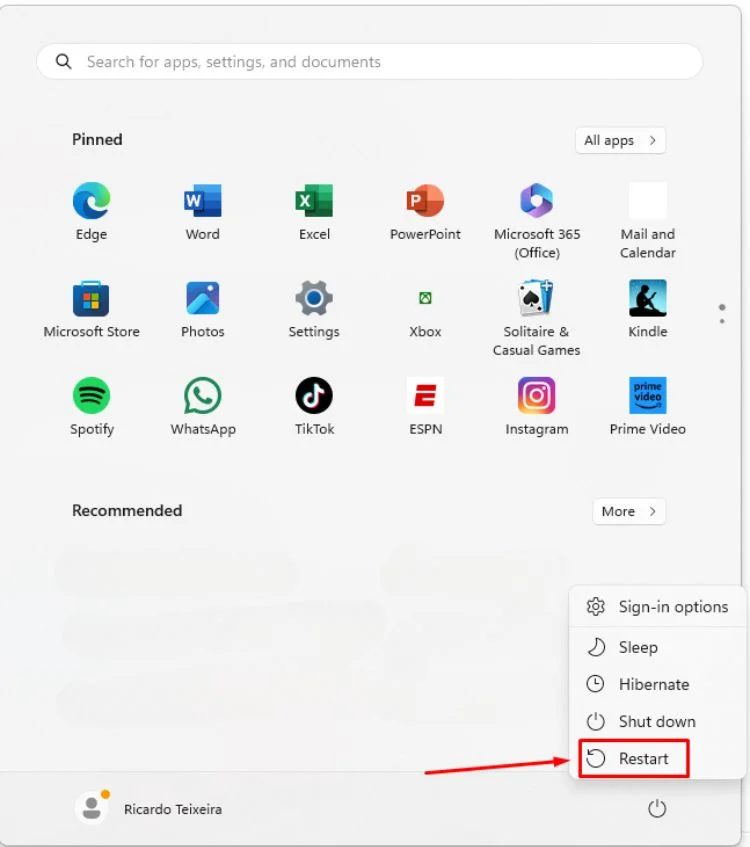
    Restart your Windows 11 PC

    2. Run Windows Services as an Administrator

    Many users have reported resolving the issue of the Services app not opening by running it as an administrator. To do this:

    • Click on Windows Search and type “Services.”
    • Right-click on the Services app and select “Run as administrator.”
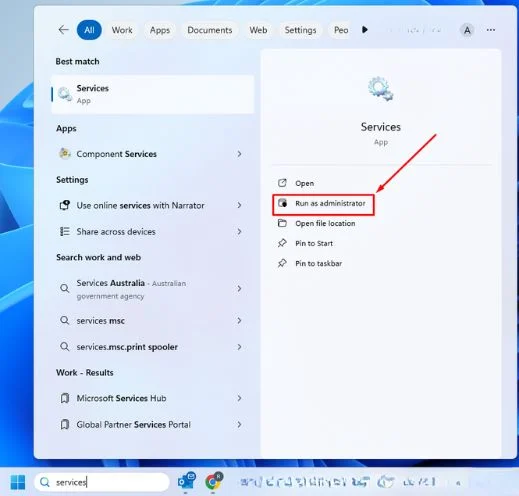
    Run Windows Services as an Administrator

    Thatโ€™s it! This is how you can fix Services not opening on Windows computers.

    3. Try Running Windows Services through Command Prompt

    If the Services.msc app is not opening directly, you can try opening it from the Command Prompt.

    • Press the Windows Key, type “Command Prompt,” right-click on it, and select “Run as administrator.”
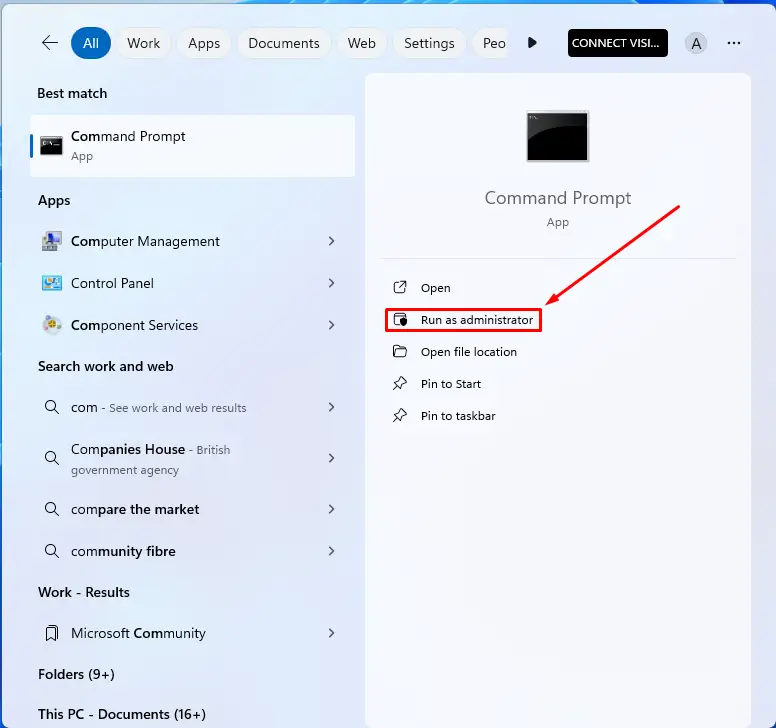
    Command Prompt,
    • Then, type the “services.msc” command and press Enter button on your keyboard.
    Command1

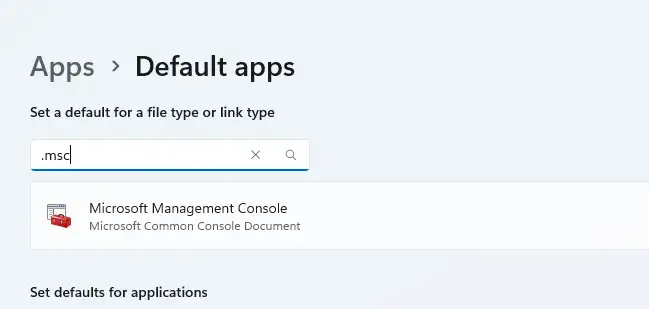
    4. Select Microsoft Management Console as default app for .msc files

    Setting Microsoft Management Console as the default app for .msc files is crucial for ensuring the proper functioning of the Services.msc. You can do this by:

    • Search for Settings and click Open the Settings app.
    Microsoft Management Console - Settings
    • Select “Apps,” and then choose “Default apps,”
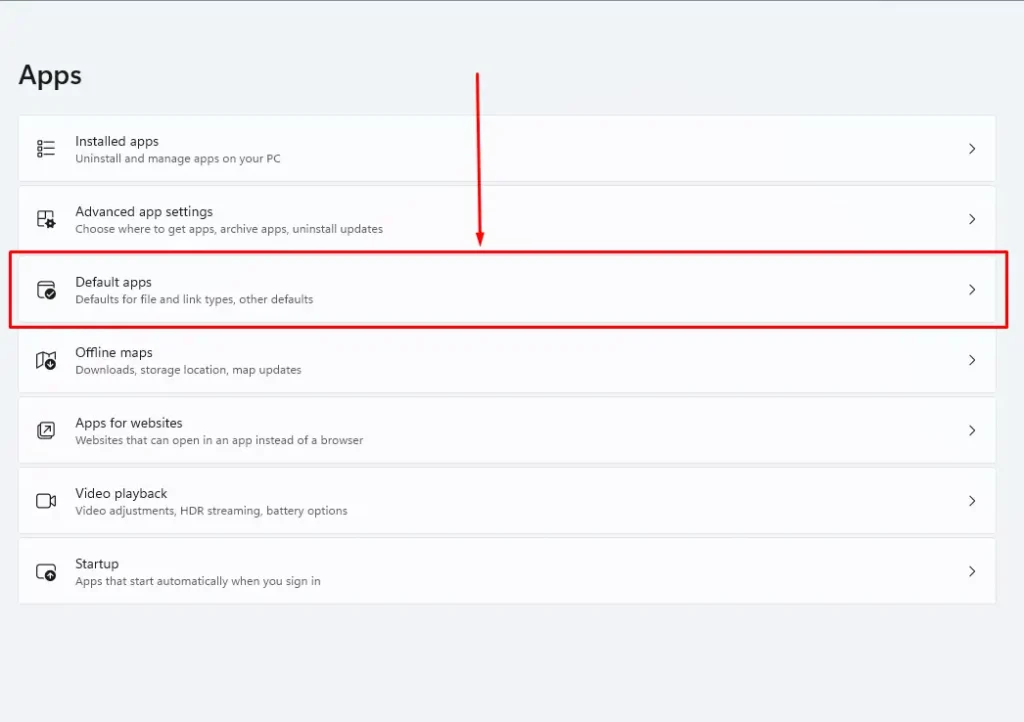
    Microsoft Management Console - Settings Default App
    • Search for “.msc,”
    Microsoft Management Console - Default Apps
    • Setting Microsoft Management Console as the default app
    Microsoft Management Console App

    Thatโ€™s it! This is how you can set Microsoft Management Console as the default app for .msc files to fix Windows Services not opening.

    5. Run Windowsโ€™ Built-In Troubleshooters

    Running the System Maintenance Troubleshooter can help resolve any system maintenance issues that may be preventing Windows Services from opening. You can access this troubleshooter by:

    • Click on the Windows search, type “Perform recommended maintenance,” and select “Perform recommended maintenance task automatically.”
    Perform recommended maintenance task automatically
    • Click on “Advanced Button” to show more options.
    Perform recommended maintenance task automatically - Advanced
    • Tick theย Apply repairs automaticallyย option (Important) and click Next.
    Perform recommended maintenance task automatically - Apply Repair Auto

    Thatโ€™s it! This will run the System Maintenance troubleshooter on your Windows computer.

    6. Run the SFC Scan

    System file corruption can be a common reason for Services not opening on Windows. Running the System File Checker (SFC) utility can help repair corrupted system files. To do this:

    • Open Command Prompt as an Administrator.
    Command Prompt

    • Type “sfc /scannow,” and press Enter.

    sfc /scannow

    scannow
    • Wait for the scan to complete. If SFC returns an error, you can run the DISM tool commands (list below) to address the issue further.

    DISM /Online /Cleanup-Image /CheckHealth

    DISM /Online /Cleanup-Image /ScanHealth

    DISM /Online /Cleanup-Image /RestoreHealth

    DISM Commands

    Thatโ€™s it! After performing the above steps, restart your Windows computer. This should fix the Services app not opening on Windows.

    7. Run a Full Antivirus Scan

    Running a full antivirus scan with Windows Security is recommended to ensure that malware is not causing the Services app to malfunction. You can access the Windows Security app by following these steps:

    • Click on Windows search, type “Windows Security,” and open the Windows Security app.
    Windows Security
    • Click on Virus & Threat Protection.
    Windows Security - Virus
    • Click on theย Scanย options.
    • Selectย Full Scanย and click theย Scan Nowย button.

    Thatโ€™s it! After running a full scan, restart your PC and access the Windows Services app again.

    8. Perform a System Restore

    If the Services.msc is still not opening, you can consider performing a System Restore to revert your PC to a previous state when the Services app was functioning correctly. To do this follow the steps below:

    • Type “Recovery” in Windows Search and open the Recovery app under the Settings tab.
    Perform a System Restore - Step 1
    • On the Recovery app, click on Open System Restore.
    Perform a System Restore - Step 2
    • On the System Restore prompt, clickย Next.
    Perform a System Restore - Step 3
    • Now, pick the restore pointย of a past date and click Next.
    Perform a System Restore - Step 4
    • Confirm the restore point, and clickย Finish.
    Perform a System Restore - Step 5

    You need to wait until the Recovery app restores your PC. The process may take a while to complete.

    9. Reset Windows

    If all else fails, resetting Windows may be the last resort. This will restore your system to its original state. You can initiate the reset process by accessing the Recovery app and following the instructions to reset your Windows PC.
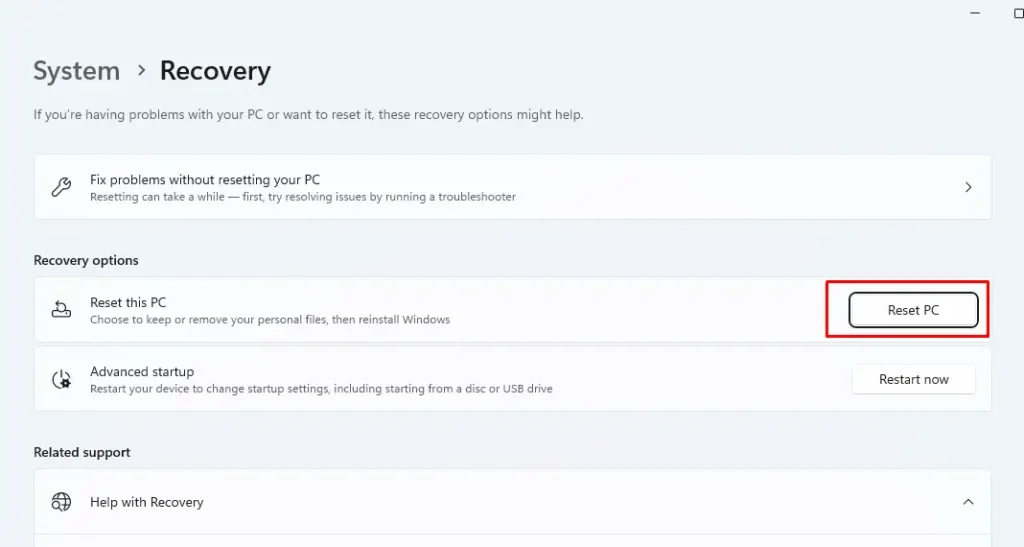
    Reset Windows

    Important note: resetting will remove all your user settings and important registry & local group policy settings. So, back up all your important files before reset your computer.

    Frequently Asked Questions

    Enabling Disabled Services through the Services Console

    If you find that a service is disabled in the Services Console, you can enable it by following these steps:

    1. Open the Services Console by typing “services.msc” in the Run dialog box.
    2. Locate the service that you want to enable and right-click on it.
    3. Select “Properties” from the context menu.
    4. In the Properties dialog box, go to the “General” tab.
    5. Change the “Startup type” to “Automatic” or “Manual”.
    6. Click “Apply” and then “OK”.

    Restarting a Specific Service Using the Microsoft Management Console

    To restart a specific service using the Microsoft Management Console, follow these steps:

    1. Open the Microsoft Management Console by typing “mmc” in the Run dialog box.
    2. Go to “File” > “Add/Remove Snap-in”.
    3. Select “Services” and click “Add”.
    4. Click “OK” to add the Services snap-in to the MMC.
    5. Locate the service that you want to restart and right-click on it.
    6. Select “Restart” from the context menu.

    Common Reasons for Microsoft Services to Stop Working and How to Address Them

    There are several reasons why Microsoft services may stop working. Some common reasons include:

    1. Corrupted system files.
    2. Conflicts with other services or applications.
    3. Outdated drivers.
    4. Malware or virus infections.

    To address these issues, you can try the following:

    1. Run a system file checker scan.
    2. Disable conflicting services or applications.
    3. Update your drivers.
    4. Run a malware scan.

    System Permissions Required to Make Changes in the Services Console

    To make changes in the Services Console, you need to have administrative privileges on the computer. If you are not an administrator, you will not be able to make any changes to the services.

    Restoring Default Service Configurations if You Encounter Errors After Modifying Them

    If you encounter errors after modifying the service configurations, you can restore the default settings by following these steps:

    1. Open the Services Console by typing “services.msc” in the Run dialog box.
    2. Locate the service that you want to restore and right-click on it.
    3. Select “Properties” from the context menu.
    4. In the Properties dialog box, go to the “Recovery” tab.
    5. Click “Restore Defaults” and then click “Apply” and “OK”.
    Computer Services.msc Windows Windows Errors
    Share. Facebook Twitter Pinterest LinkedIn Tumblr Email
    Previous ArticleLockBit ransomware arrested by FBI, Interpol and Police members, release decryptor in global crackdown
    Next Article HP Spectre x360 16-f1176ng Comprehensive Review: Is This the Ultimate 3K IPS Touchscreen Laptop of the Year?
    Ricardo Teixeira

    Hi there! I'm Ricardo Teixeira, and I love writing about all things tech. I'm always on the lookout for the newest gadgets and trends in software. My goal? To give you deep and smart reviews that make understanding tech easy. I'm here to help you feel confident and comfortable with all the tech changes happening around us.

    Related Posts

    Spotify Error Code 18
    How Tos

    Effortless Solutions to Fix Spotify Error Code 18: Troubleshoot & Stream Uninterrupted!

    March 6, 2024
    Enable Two Finger Scroll on Windows
    Guides

    Enable Two Finger Scroll on Windows: Easy Step-by-Step Guide

    March 5, 2024
    How to Play Fortnite on Chromebook
    Chromebooks

    How to Play Fortnite on Chromebook: Step-by-Step Guide

    February 27, 2024
    Add A Comment
    Leave A Reply Cancel Reply

    Top Posts
    Best IPTV Players for Firestick/Android TV

    10 Best IPTV Players for Firestick/Android TV in 2024: Top Picks Revealed

    March 2, 2024125K Views
    5 Best Bottleneck Calculators for PC in 2024

    5 Best Bottleneck Calculators for PC in 2024

    March 1, 2024112K Views
    Spotify Error Code 18

    Effortless Solutions to Fix Spotify Error Code 18: Troubleshoot & Stream Uninterrupted!

    March 6, 2024111K Views
    Stay In Touch
    • Facebook
    • YouTube
    • TikTok
    • WhatsApp
    • Twitter
    • Instagram

    Subscribe to our Newsletter

    Stay updated with all the latest and important news, articles, and deals in the Tech industry.

    Most Popular
    Best IPTV Players for Firestick/Android TV

    10 Best IPTV Players for Firestick/Android TV in 2024: Top Picks Revealed

    March 2, 2024125K Views
    5 Best Bottleneck Calculators for PC in 2024

    5 Best Bottleneck Calculators for PC in 2024

    March 1, 2024112K Views
    Spotify Error Code 18

    Effortless Solutions to Fix Spotify Error Code 18: Troubleshoot & Stream Uninterrupted!

    March 6, 2024111K Views
    Our Picks
    OpenAI strikes major deal with News Corp to boost ChatGPT

    OpenAI strikes major deal with News Corp to boost ChatGPT

    May 23, 2024
    How to Run Apps as Administrator on Windows 11 (All Methods)

    How to Run Apps as Administrator on Windows 11 (All Methods)

    March 20, 2024
    Report: New anti-glare and scratch-resistant display coming to iPhone 17

    Report: New anti-glare and scratch-resistant display coming to iPhone 17

    March 19, 2024

    Subscribe to our Newsletter

    Stay updated with all the latest and important news, articles, and deals in the Tech industry.

    Facebook X (Twitter) Instagram Pinterest
    • Terms of Use
    • Privacy Policy
    • Cookie Policy
    • Copyright
    • Sitemap
    • Contact Us
    © 2026 Techie Talks. All rights reserved. Techie Talks Media Group may earn a commission when you buy through links on our sites.

    Type above and press Enter to search. Press Esc to cancel.