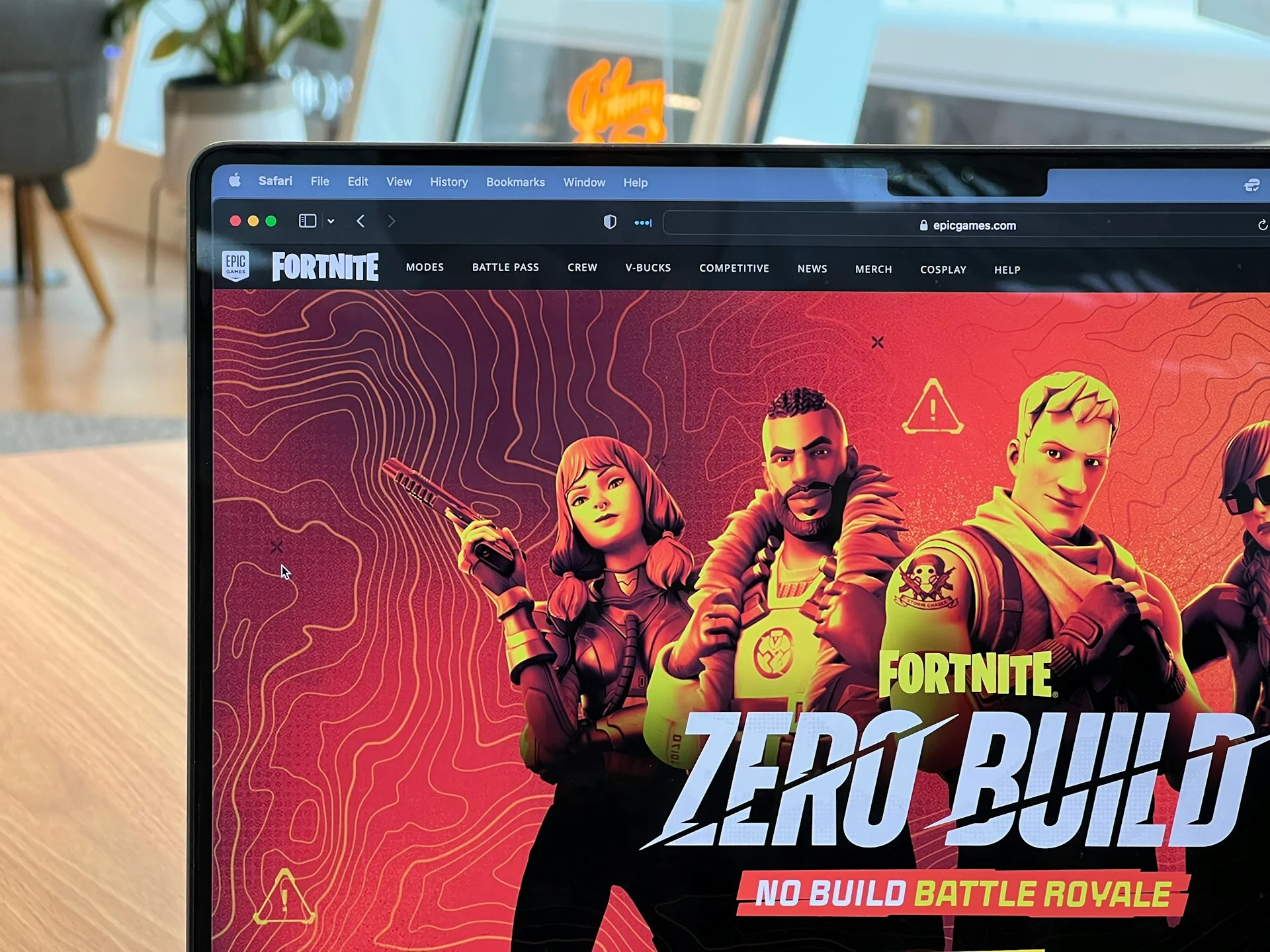
If you’re a Mac user and a Fortnite fan, you might be wondering if it’s possible to play the game on your computer. The good news is that it is possible to play Fortnite on a Mac, but there are a few things you need to know before you get started. In this article, we’ll guide you through the steps you need to follow to play Fortnite on your Mac, including the system requirements, setting up your Mac, installing the game, and accessing it via cloud gaming platforms.
Before we get started, it’s important to note that Fortnite is a popular battle royale game developed by Epic Games. It’s available on multiple platforms, including Mac, Windows, PlayStation, Xbox, Nintendo Switch, iOS, and Android. The game is free to play, but it does offer in-game purchases that allow you to customize your character and unlock new features. With that said, let’s dive into how to play Fortnite on a Mac.
- System Requirements for Fortnite on Mac
- Setting Up Your Mac for Fortnite
- Installing Fortnite on Mac
- Accessing Fortnite via Cloud Gaming Platforms
- Epic Games Account and Subscription Services
- Fortnite Gameplay on Mac
- Peripherals and Controls
- Legal and Compatibility Considerations
- Troubleshooting and Support
- Cross-Platform Play and Progress
- Alternative Ways to Play
- Frequently Asked Questions
Key Takeaways
- You can play Fortnite on a Mac by meeting the system requirements, setting up your Mac, and installing the game.
- Cloud gaming platforms like Xbox Game Pass, GeForce Now, and Amazon Luna allow you to play Fortnite on your Mac without installing the game.
- Cross-platform play and progress are possible, but there are legal and compatibility considerations to keep in mind.
System Requirements for Fortnite on Mac
If you want to play Fortnite on your Mac, you need to make sure your system meets the minimum and recommended specifications. Here are the specifications you need to check:
Minimum Specifications
To play Fortnite on your Mac, your system needs to meet the following minimum specifications:
- Operating System: macOS Sierra (10.12.6) or later
- Processor: Intel Core i3 2.4 GHz
- Memory (RAM): 4 GB RAM
- Graphics Card: Intel HD 4000
It’s important to note that these are the bare minimum requirements to play Fortnite. If your Mac meets these specifications, you can expect to run the game at the lowest graphics settings with a lower frame rate.
Recommended Specifications
If you want to have a better gaming experience, we recommend that your Mac meets the following specifications:
- Operating System: macOS Sierra (10.12.6) or later
- Processor: Intel Core i5 2.8 GHz
- Memory (RAM): 8 GB RAM
- Graphics Card: Nvidia GTX 660 or AMD Radeon HD 7870 equivalent DX11 GPU
Meeting these specifications will allow you to run Fortnite at higher graphics settings with a smoother frame rate.
It’s worth noting that if you have an Apple Silicon Mac, you can still play Fortnite using Rosetta 2. However, you may experience some performance issues due to the emulation process. If you have an Intel Mac, you should be able to run Fortnite without any issues as long as your system meets the minimum or recommended specifications.
In conclusion, make sure your Mac meets the minimum or recommended specifications to ensure a smooth and enjoyable gaming experience when playing Fortnite.
Setting Up Your Mac for Fortnite
If you are a Mac user and want to play Fortnite, there are a few things you need to do to get started. In this section, we will cover the steps you need to take to set up your Mac for Fortnite.
Updating macOS
Before you start playing Fortnite on your Mac, it is important to make sure that your macOS is up to date. You can check for updates by clicking on the Apple menu in the top left corner of your screen, then selecting “System Preferences” and “Software Update.” If there are any updates available, click “Update Now” to install them.
Managing Storage Resources
Fortnite is a large game that requires a significant amount of storage space. If you have a MacBook Pro or an iMac with a small SSD, you may need to manage your storage resources carefully. One way to free up space is to uninstall any apps or files that you no longer need. Another option is to move files to an external hard drive.
Optimizing Mac Settings
To get the best performance out of Fortnite on your Mac, it is important to optimize your Mac settings. Here are a few tips:
- Close any unnecessary applications before launching Fortnite to free up system resources.
- Adjust the graphics settings in Fortnite to match the capabilities of your Mac. Lower graphics settings can help improve performance.
- Enable “Reduce Motion” in the Accessibility settings to reduce the amount of animation and motion effects in macOS.
By following these steps, you can set up your Mac for Fortnite and ensure that you have the best possible experience playing the game.
Installing Fortnite on Mac
Fortnite is a popular game that can be played on Mac. In this section, we will explain how to install Fortnite on your Mac. There are two main methods to install Fortnite on Mac: using the Epic Games Launcher or alternative installation methods.
Using the Epic Games Launcher
The Epic Games Launcher is the official way to download and install Fortnite on Mac. Here are the steps to install Fortnite on your Mac using the Epic Games Launcher:
- Open your browser and head to the Epic Games website.
- Click the “Download” button to download the Epic Games Launcher.
- Once the download is complete, open the Epic Games Launcher installer and follow the on-screen instructions to install it on your Mac.
- After the installation is complete, open the Epic Games Launcher and sign in to your Epic Games account. If you don’t have an account, you can create one for free.
- Click the “Fortnite” icon in the Epic Games Launcher to download and install the game.
Alternative Installation Methods
If you prefer not to use the Epic Games Launcher, there are alternative installation methods available. Here are some of the most popular methods:
- Mac App Store: Fortnite is also available on the Mac App Store. Simply search for “Fortnite” in the App Store and click the “Get” button to download and install the game.
- Boot Camp: Boot Camp is a built-in utility in macOS that allows you to install Windows on your Mac. Once you have Windows installed, you can download and install Fortnite as you would on a Windows PC.
- Parallels: Parallels is a virtual machine software that allows you to run Windows on your Mac without having to reboot your computer. Once you have Parallels installed, you can download and install Fortnite as you would on a Windows PC.
In conclusion, there are several ways to install Fortnite on your Mac. The easiest and most straightforward way is to use the Epic Games Launcher. However, if you prefer alternative methods, you can use the Mac App Store, Boot Camp, or Parallels.
Accessing Fortnite via Cloud Gaming Platforms
If you’re a Mac user and want to play Fortnite, you can access the game through cloud gaming platforms. Here are some of the most popular cloud gaming services that allow you to play Fortnite on your Mac.
Playing on GeForce Now
GeForce Now is a cloud gaming service that allows you to play games on your Mac without the need for a high-end gaming PC. With GeForce Now, you can play Fortnite on your Mac with high-quality graphics and low latency. To play Fortnite on GeForce Now, you need to have a subscription to the service and a compatible Mac device.
Using Xbox Cloud Gaming
Xbox Cloud Gaming (formerly known as Project xCloud) is a cloud gaming service that allows you to play Xbox games on your Mac. With Xbox Cloud Gaming, you can play Fortnite on your Mac with high-quality graphics and low latency. To play Fortnite on Xbox Cloud Gaming, you need to have a subscription to Xbox Game Pass Ultimate and a compatible Mac device.
Other Cloud Gaming Services
Apart from GeForce Now and Xbox Cloud Gaming, there are other cloud gaming services that allow you to play Fortnite on your Mac. Some of the popular cloud gaming services include Boosteroid, Amazon Luna, and NVIDIA GeForce Now. These services offer varying features and subscription plans, so be sure to check them out and choose the one that best suits your needs.
In conclusion, cloud gaming platforms are a great way to play Fortnite on your Mac. With high-quality graphics, low latency, and a wide range of subscription plans, cloud gaming services offer a convenient and affordable way to enjoy your favorite games on your Mac device.
Epic Games Account and Subscription Services
Creating an Epic Games Account
To play Fortnite on a Mac, you will need to create an Epic Games account. This account will allow you to download and play the game on your Mac. To create an account, simply visit the Epic Games website and click on the “Sign In” button in the top right corner. From there, you can choose to either sign in with an existing account or create a new one.
If you choose to create a new account, you will need to provide some basic information such as your name, email address, and a password. Once you have created an account, you will be able to download the Epic Games Launcher, which is the platform you will use to download and play Fortnite on your Mac.
Understanding Subscription Options
Epic Games offers a variety of subscription options for players who want to get the most out of their gaming experience. One such option is the Xbox Game Pass, which gives you access to over 100 games, including Fortnite, for a monthly fee.
If you want even more benefits, you can upgrade to the Xbox Game Pass Ultimate, which includes all the benefits of the regular Xbox Game Pass, as well as access to Xbox Live Gold and other exclusive perks.
It’s important to note that while Fortnite is a free-to-play game, there are some paid subscription services available that can enhance your gaming experience. These services are entirely optional, and you can still enjoy the game without them.
In summary, to play Fortnite on a Mac, you will need to create an Epic Games account and download the Epic Games Launcher. While there are some paid subscription services available, they are entirely optional and not necessary to enjoy the game.
Fortnite Gameplay on Mac
Playing Fortnite on a Mac is an exciting experience that offers a variety of game modes and features. In this section, we will cover some of the most important aspects of Fortnite gameplay on a Mac.
Game Modes and Features
Fortnite offers several game modes, including Battle Royale, Creative, and Save the World. Battle Royale is the most popular mode, where 100 players fight to be the last one standing. Creative mode allows players to create their own maps and game modes, while Save the World is a cooperative mode where players fight against zombie-like creatures.
In addition to the game modes, Fortnite also offers a variety of features, including building, shooting, and looting. Building is a unique aspect of Fortnite that allows players to create structures to protect themselves and gain a tactical advantage. Shooting is an essential part of the gameplay, and players can choose from a variety of weapons to use. Looting involves searching for weapons, ammo, and other items to help players survive.
In-Game Purchases and V-Bucks
Fortnite offers in-game purchases that allow players to buy cosmetic items, such as skins, emotes, and gliders, from the Item Shop. These purchases require V-Bucks, which can be earned by completing challenges or bought with real money. It’s important to note that V-Bucks cannot be transferred between platforms, so players should ensure they have enough V-Bucks on their Mac account before making a purchase.
Performance Tweaks and Tips
To get the best performance while playing Fortnite on a Mac, there are a few tweaks and tips that can be implemented. First, ensure that the Mac meets the minimum system requirements for the game. It’s also recommended to close any unnecessary applications and programs while playing Fortnite to free up system resources.
Additionally, players can adjust the graphics settings to optimize performance. Lowering the graphics quality can improve FPS (frames per second) and reduce lag. Turning off shadows and reducing the render distance can also improve performance.
In conclusion, playing Fortnite on a Mac offers an exciting and engaging experience with a variety of game modes, features, and in-game purchases. By following the performance tweaks and tips, players can ensure they get the best performance while playing Fortnite on their Mac.
Peripherals and Controls
When it comes to playing Fortnite on a Mac, there are two primary ways to control your character: using a keyboard and mouse or connecting a controller. In this section, we will discuss both methods and provide some tips for optimizing your gameplay experience.
Using a Keyboard and Mouse
For Mac users who are accustomed to using a keyboard and mouse, this control method may feel more natural than using a controller. When using a keyboard and mouse, you have more precision and control over your character’s movements, which can be especially important in fast-paced games like Fortnite.
To optimize your keyboard and mouse setup, we recommend customizing your key bindings to suit your preferences. By default, Fortnite’s key bindings are set up for a standard QWERTY keyboard, but you can modify them to better suit your playstyle. For example, you may want to assign certain actions to specific keys or change the sensitivity of your mouse.
Connecting Controllers
If you prefer a more traditional gaming experience, you may want to connect a controller to your Mac. Fortnite supports a variety of controllers, including the Xbox One controller, PlayStation 4 controller, and Nintendo Switch Pro controller.
To connect a controller, simply plug it into your Mac using a USB cable or connect it via Bluetooth. Once your controller is connected, you may need to adjust your settings to ensure that it is properly configured for Fortnite. You can do this by navigating to the “Controller” tab in the game’s settings menu.
Keep in mind that using a controller may take some getting used to if you are accustomed to using a keyboard and mouse. However, many players find that a controller provides a more comfortable and intuitive gaming experience, especially for games that require quick reflexes and precise movements.
Overall, the choice between using a keyboard and mouse or a controller comes down to personal preference. We recommend experimenting with both methods to see which one feels more natural to you. With the right setup, you can enjoy Fortnite on your Mac with the control scheme that works best for you.
Legal and Compatibility Considerations
When it comes to playing Fortnite on a Mac, there are a few legal and compatibility considerations to keep in mind. In this section, we’ll discuss the legal dispute between Apple and Epic Games and the compatibility of Fortnite with Apple devices.
Apple and Epic Games Legal Dispute
As many Fortnite players know, there has been a legal dispute between Apple and Epic Games since 2020. This dispute began when Epic Games introduced its own in-app payment system in Fortnite, bypassing Apple’s App Store payment system and resulting in the removal of Fortnite from the App Store. Since then, the dispute has escalated and is still ongoing.
As a result of this legal dispute, Fortnite is no longer available on the App Store, and Apple devices cannot download the game directly. However, there are still ways to play Fortnite on a Mac, which we’ll discuss in later sections.
Compatibility with Apple Devices
Fortnite is compatible with Apple devices running iOS 13.0 or later, but as we mentioned earlier, the game is no longer available on the App Store. However, there are other ways to play Fortnite on a Mac.
One method is to use a cloud gaming service such as Boosteroid or GeForce Now. These platforms provide access to Fortnite and allow you to play it on your M1 or M2 Mac without the need to download it. Another option is to use Boot Camp to install Windows on your Mac and then download and play Fortnite on Windows.
It’s important to note that while these methods allow you to play Fortnite on a Mac, they may not provide the same level of performance as playing on a dedicated gaming PC. Additionally, using third-party services or installing Windows on your Mac may void your warranty or violate Apple’s terms of service.
Overall, while there are legal and compatibility considerations to keep in mind when playing Fortnite on a Mac, there are still ways to enjoy the game on your Apple device.
Troubleshooting and Support
If you encounter issues while trying to play Fortnite on your Mac, don’t worry, we’ve got you covered. In this section, we will cover some common installation issues, performance and connectivity problems, and how to seek further assistance.
Common Installation Issues
If you are having trouble installing Fortnite on your Mac, make sure your system meets the minimum requirements. Check the Epic Games website for the latest system requirements. If your Mac meets the minimum requirements, but you are still having trouble, try uninstalling and reinstalling the game. If that doesn’t work, try restarting your Mac and then reinstalling the game.
Performance and Connectivity Problems
If you are experiencing performance issues while playing Fortnite on your Mac, make sure you have a stable internet connection. A poor internet connection can cause lag and other performance issues. If your internet connection is stable, try lowering the graphics settings in the game. This can help improve performance on older Macs. Additionally, try closing any other applications that are running in the background. This can free up system resources and improve game performance.
Seeking Further Assistance
If you have tried all of the above troubleshooting steps and are still having issues with Fortnite on your Mac, you may need to seek further assistance. Check the Epic Games website for support articles and forums. You can also contact Epic Games support directly for help with your issue. If you suspect an issue with the anti-cheat system, make sure you follow the guidelines set by Epic Games to avoid any potential bans.
In conclusion, if you encounter any issues while playing Fortnite on your Mac, don’t panic. Follow the troubleshooting steps outlined above, and seek further assistance if necessary. With a little patience and persistence, you’ll be back to playing Fortnite on your Mac in no time.
Cross-Platform Play and Progress
Playing Fortnite on a Mac means you can join in with millions of other players across multiple platforms. Cross-platform play is available for PC, PlayStation 4, Xbox One, Nintendo Switch, Android, and iOS. This means you can play with your friends no matter what device they are using.
Playing with Console and PC Gamers
Fortnite allows for cross-platform play between consoles and PC. This means that if you are playing on a Mac, you can join in with your friends on PlayStation 4, Xbox One, and PC. However, cross-platform play is not available between consoles. For example, PlayStation 4 players cannot join in with Xbox One players.
To play with your friends on different platforms, you will need to add them as friends in-game. You can do this by searching for their Epic Games account name. Once they have accepted your friend request, you can join their party and start playing together.
Syncing Game Progress Across Devices
One of the benefits of playing Fortnite on a Mac is that you can sync your game progress across devices. This means that you can start playing on your Mac and then continue playing on your iPhone or iPad, for example. To do this, you will need to link your Epic Games account to your other devices.
To link your Epic Games account, you will need to log in to your account on the Epic Games website. From there, you can link your account to your other devices. Once your account is linked, your game progress will be synced across all of your devices.
In conclusion, playing Fortnite on a Mac allows you to join in with millions of players across multiple platforms. Cross-platform play is available for PC, PlayStation 4, Xbox One, Nintendo Switch, Android, and iOS. You can also sync your game progress across devices, making it easy to switch between your Mac and other devices.
Alternative Ways to Play
If you are unable to use the methods mentioned above to play Fortnite on your Mac, there are still a couple of alternative ways to play the game.
Using Bootcamp for Windows on Mac
One way to play Fortnite on your Mac is by using Bootcamp to install Windows on your Mac. This method allows you to run Windows natively on your Mac, giving you access to all the Windows applications and games, including Fortnite.
To use Bootcamp, you need to have a copy of Windows, which you can purchase from the Microsoft Store or any authorized retailer. You will also need to have enough storage space on your Mac to install Windows. Once you have these requirements, follow these steps:
- Open Bootcamp Assistant on your Mac.
- Follow the on-screen instructions to partition your hard drive and create a Windows installer.
- Insert the Windows installer and follow the on-screen instructions to install Windows on your Mac.
- Once Windows is installed, install the necessary drivers for your Mac using the Bootcamp installer.
- Finally, install Fortnite on Windows and start playing the game.
Streaming Fortnite via Web Browsers
Another way to play Fortnite on your Mac is by streaming the game via web browsers. This method involves using cloud gaming services that allow you to stream the game to your Mac instead of running it locally.
One popular cloud gaming service that supports Fortnite is GeForce Now. This service allows you to stream games to your Mac using Google Chrome, Microsoft Edge, or Safari web browsers. To use GeForce Now, follow these steps:
- Sign up for a GeForce Now account and download the app on your Mac.
- Launch the app and log in to your account.
- Select Fortnite from the list of available games and start playing.
Note that you will need a fast and stable internet connection to use GeForce Now. Also, the service is not free, and you will need to pay a monthly subscription fee to use it.
There are also other cloud gaming services that support Fortnite, such as Xbox Cloud and Boosteroid. However, these services may have different requirements and limitations, so make sure to check their websites for more information.
Frequently Asked Questions
What are the steps to install Fortnite on a MacBook Air?
To install Fortnite on a MacBook Air, you can download the Epic Games Launcher from the Epic Games website. Once you have downloaded the launcher, you can then install Fortnite on your MacBook Air. Please note that your MacBook Air must meet the minimum system requirements to run Fortnite properly.
Is it possible to play Fortnite on a Mac for free?
Yes, it is possible to play Fortnite on a Mac for free. You can download Fortnite for free from the Epic Games website. However, please note that there are in-game purchases available, so you may choose to spend money on the game if you wish.
How to Play Fortnite on a Mac after the ban?
If you are unable to play Fortnite on your Mac after the ban, you can try using one of the workarounds that are available. For example, you can use Xbox Cloud to play Fortnite on your Mac. Alternatively, you can use Boot Camp to install Windows on your Mac and then play Fortnite on Windows.
What options are available to play Fortnite on a Mac without a controller?
If you do not have a controller to play Fortnite on your Mac, you can use your keyboard and mouse to play the game. Fortnite has built-in support for keyboard and mouse controls, so you should be able to play the game without any issues.
Can I play Fortnite on my Mac browser, and if so, how?
No, you cannot play Fortnite on your Mac browser. Fortnite is a game that must be downloaded and installed on your computer in order to play it.
What should I do if I can’t update Fortnite on my Mac?
If you are having trouble updating Fortnite on your Mac, you can try restarting your computer and then attempting to update the game again. You can also try uninstalling and then reinstalling the game to see if that resolves the issue. If you are still having trouble, you can contact Epic Games support for further assistance.